For UI driven installation
This section describes the manual installation procedures for RMF Services and the RMF client.
RMF Smart Sync Service, RMF Configurator UI, and RMF Alarm Service
RMF Smart Client
This section describes the RMF Services Manual installation procedure.
Perform this procedure to install the following components: RMF Smart Sync Service, RMF Configurator UI, and RMF Alarm Service. Note that the Client component is also installed by default.
Complete all the steps as explained in the Pre-Installation section.
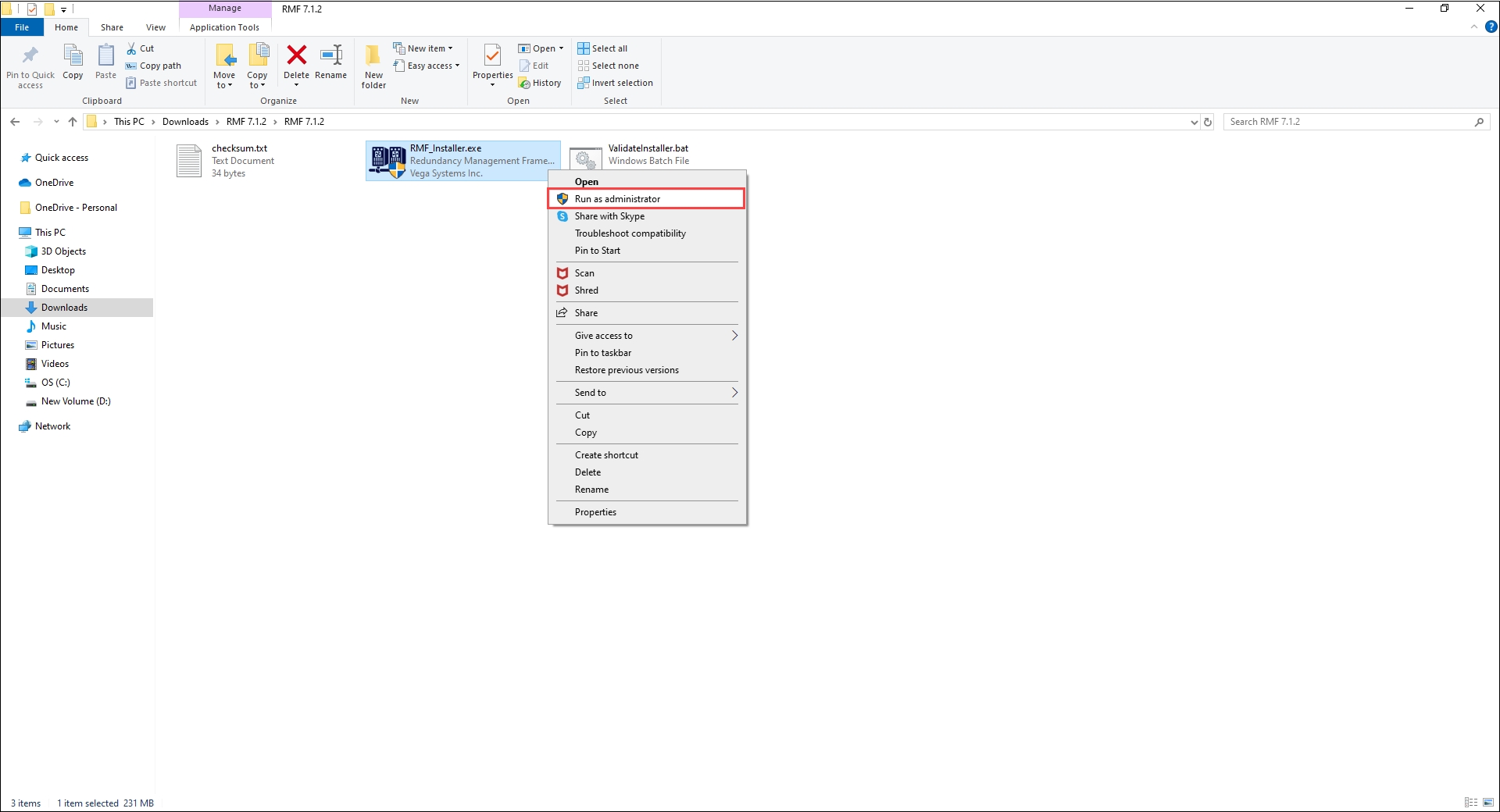
Right-click the RMF_Installer.exe file and select Run as Administrator.
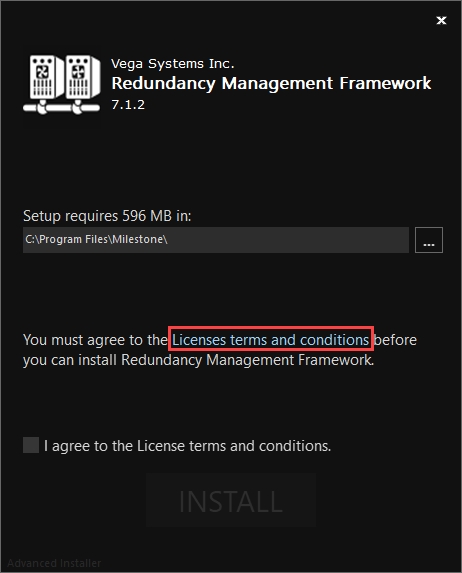
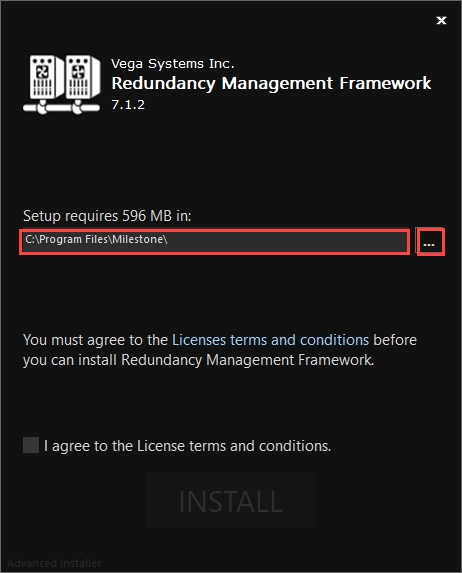
3. Ensure that the RMF Setup path is pointed to the path where the Milestone is installed.
Or, for OEM installs, click on the ellipsis icon (...) and navigate to the location where the OEM is installed.
Click License Terms and Conditions and read through the terms and conditions before installing RMF.
Select the check box I agree to the License Terms and Conditions and click INSTALL.
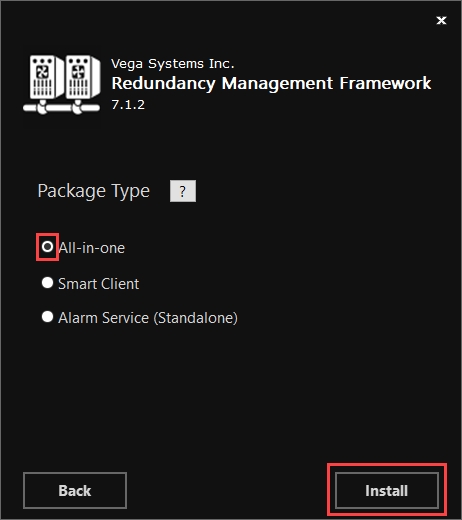
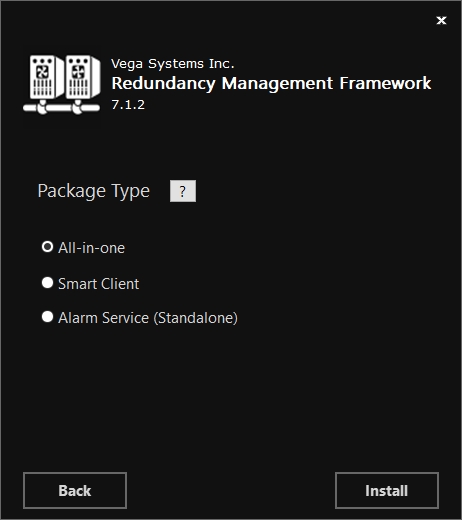
Step Result: The following screen lists all the package types.
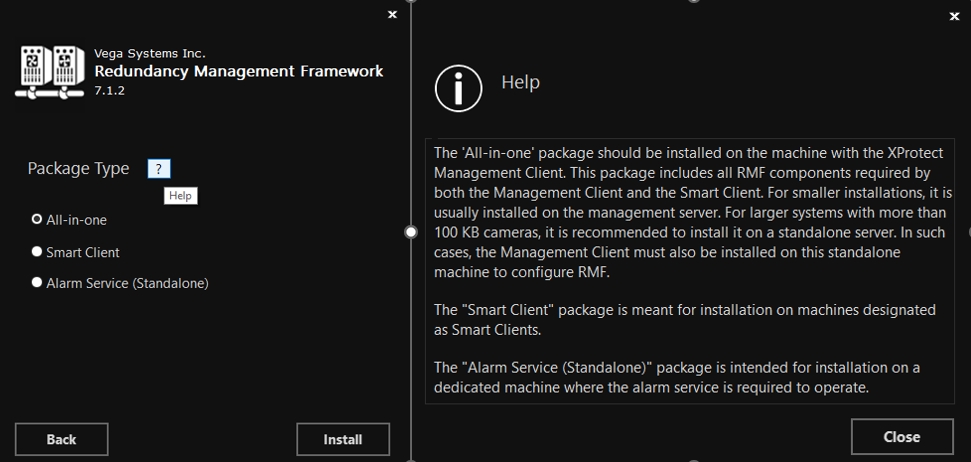
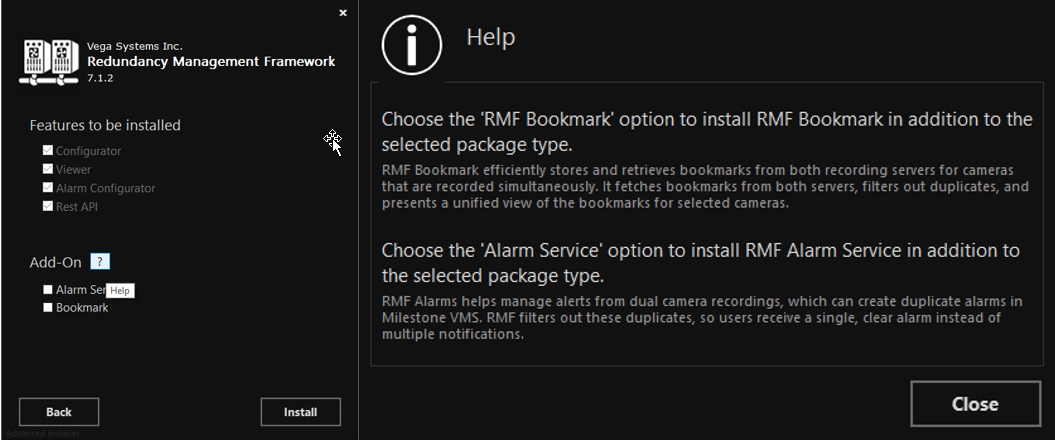
Click the Help icon to view the details for each Package type.
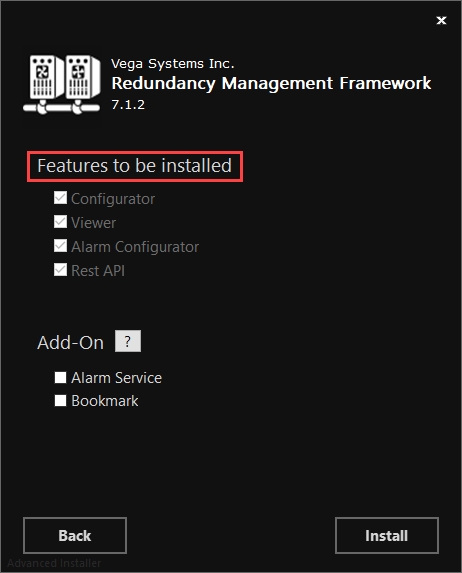
Select the All-in-one option in the Package Type dialog box and click Install.
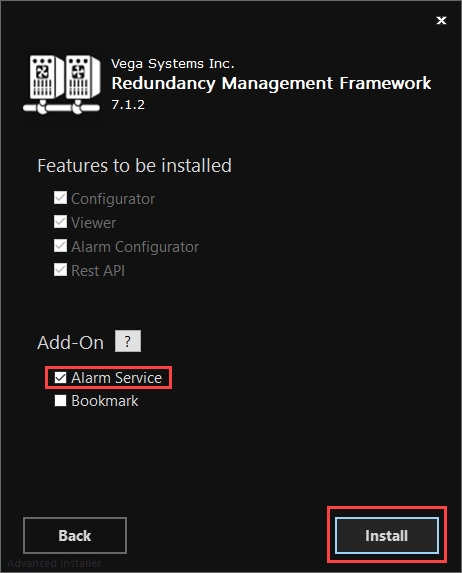
Select Alarm Service from the Add On options to install Alarm Service. Then click Install.
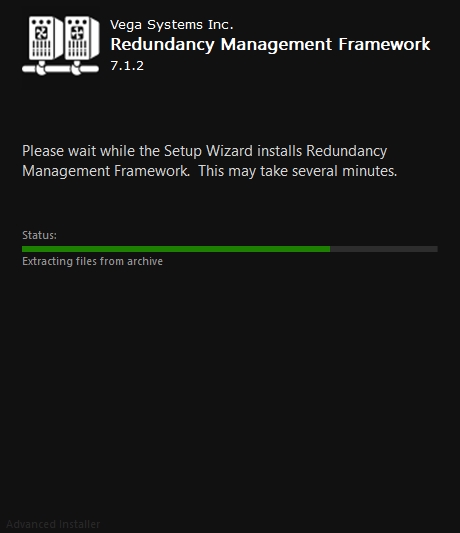
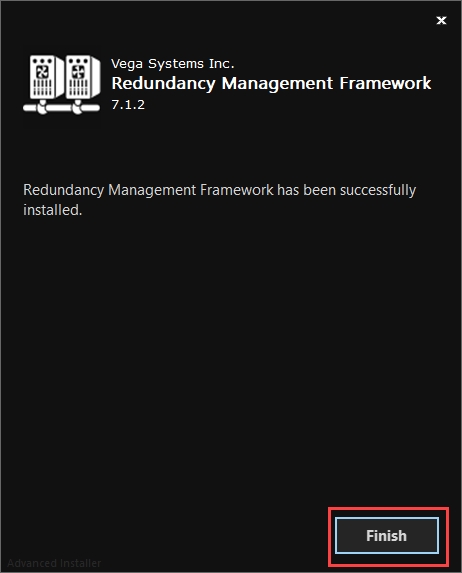
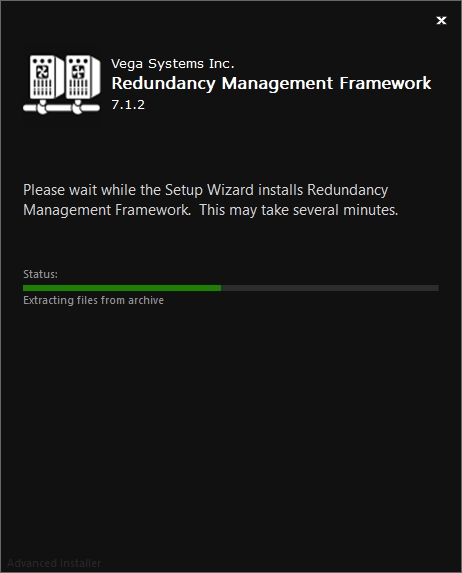
Step Result: The following screen displays the installation status.
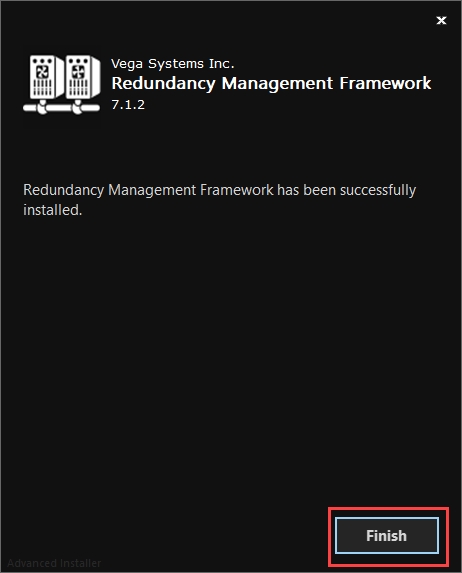
Click Finish to complete the RMF installation procedure.
This section describes the RMF Smart Client Manual installation procedure.
Perform the following steps to install the RMF Smart Client component on the Smart Client machine:
Complete all the steps as described in the Pre-Installation section.
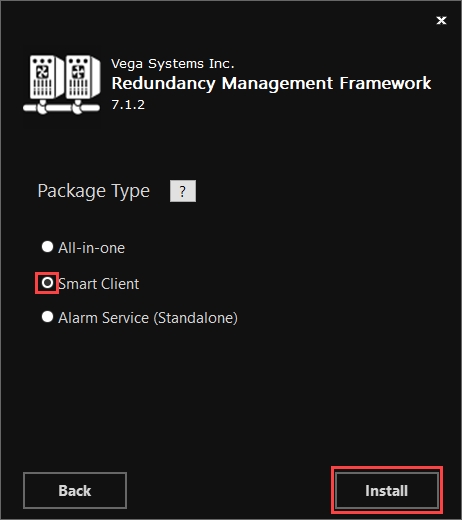
Select the Smart Client option in the Package Type dialog box and click Install.
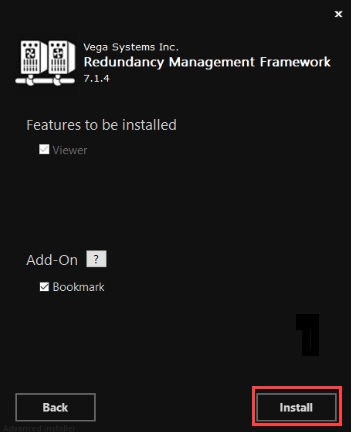
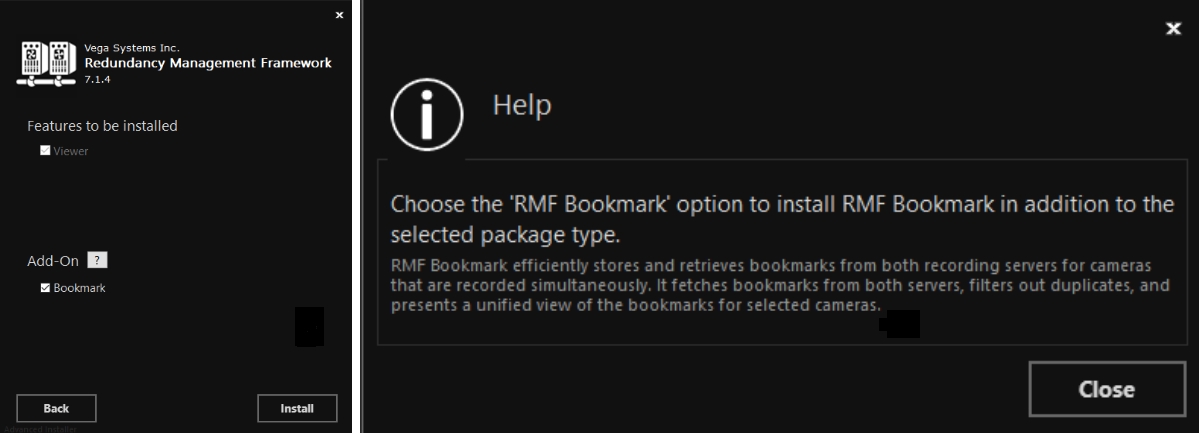
Click the Help icon to view details regarding the Add-On.
If needed, select Bookmark from the Add On option.
Click Install to proceed with the installation.
Step Result: The following screen displays the installation status.
Click Finish to complete the RMF installation procedure.